
If you've ever tried to clean a camera roll in the Photos app, you know the pain: tap Select, tap-tap-tap through a grid of thumbnails, try not to fat-finger the wrong one, tap the trash icon, repeat. For a library with thousands of photos, it's simply not a workable process. iOS does not let you swipe to delete photos.
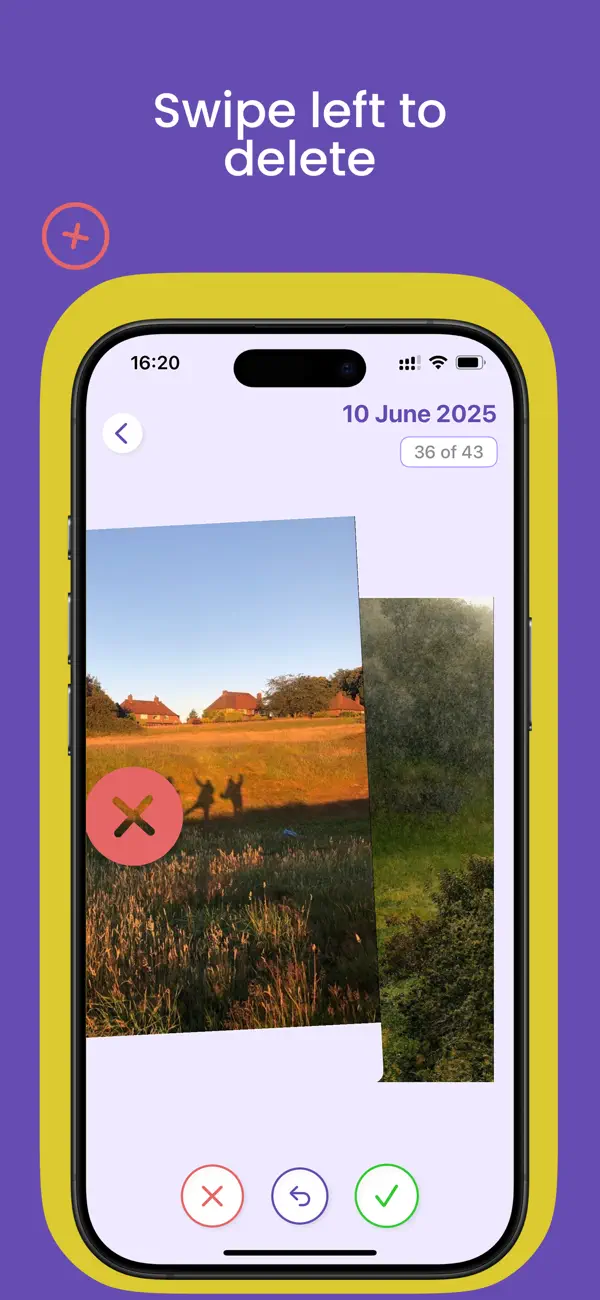
That's why swipe-based photo cleaners exist. FlickClean shows you one photo at a time, full screen, and asks a single question: keep or delete? Swipe left to delete, right to keep. Each decision takes well under a second, and clearing a few hundred photos genuinely takes minutes.
Why swiping beats the Photos app
The swipe format is faster for three concrete reasons:
- Full-screen view — you judge each photo properly instead of squinting at a thumbnail grid
- One decision at a time — no selection state to manage, no fear of mis-tapping
- Momentum — the rhythm keeps you going; the month-by-month queue and progress stats make finishing feel like a game
How swipe-to-delete works in FlickClean
- Download FlickClean. Get FlickClean free on the App Store — a 5.6 MB download, no account needed.
- Pick where to start. Go month by month through your library, hit Random for variety, or target a mode: Screenshots, Videos, Blurred or Similar.
- Swipe left to delete, right to keep. One photo at a time, full screen. The red ✕ and green ✓ buttons work too, if you prefer tapping.
- Undo anything. Swiped the wrong way? Tap undo and the photo comes right back. No decision is final at this stage.
- Confirm the batch. When you're done, the Confirm Delete screen lists everything marked for deletion. Approve it, then empty the iOS Recently Deleted album to reclaim the space.
💡 Pro tip: Do one month per session. FlickClean's month-by-month queue turns an overwhelming 10,000-photo backlog into small, finishable chunks — and the stats screen shows your streak of freed megabytes.
Frequently asked questions
Can you swipe to delete photos in the iPhone Photos app?
No. The native Photos app only supports tap-to-select and bulk delete via the Select button. Swipe-to-delete requires a third-party app like FlickClean.
Is swipe-deleting safe? What if I make a mistake?
Every swipe can be undone instantly, nothing is deleted until you approve the Confirm Delete screen, and iOS keeps deleted photos in Recently Deleted for 30 more days. Three layers of safety.
How fast is it really?
Most people review 200–500 photos in a 10-minute session once they find their rhythm. Targeted modes (screenshots, blurry shots) go even faster because the decisions are easier.