
A cluttered camera roll costs you twice. It eats storage — photos and videos are the largest category on most iPhones — and it buries your best memories under screenshots, duplicates, and blurry misfires. Scrolling back to find that one photo from last summer shouldn't take ten minutes.
The mistake most people make is trying to clean chronologically from the beginning, in the Photos app, in one heroic sitting. That approach burns out in twenty minutes. The right approach is to clear the easy, high-volume junk first, then work through the rest month by month.
The cleanup order that actually works
Work through these in order — easiest and highest-impact first:
- Large videos — the fewest items, the biggest space wins
- Screenshots — high volume, near-zero emotional attachment, fast decisions
- Blurry shots — automatic detection makes this a pure win
- Duplicates and similars — keep the best of each group
- Everything else, month by month — small, finishable chunks
Clean up your camera roll with FlickClean (step by step)
- Download FlickClean. Get FlickClean free on the App Store. It runs 100% on-device, needs no account, and works offline.
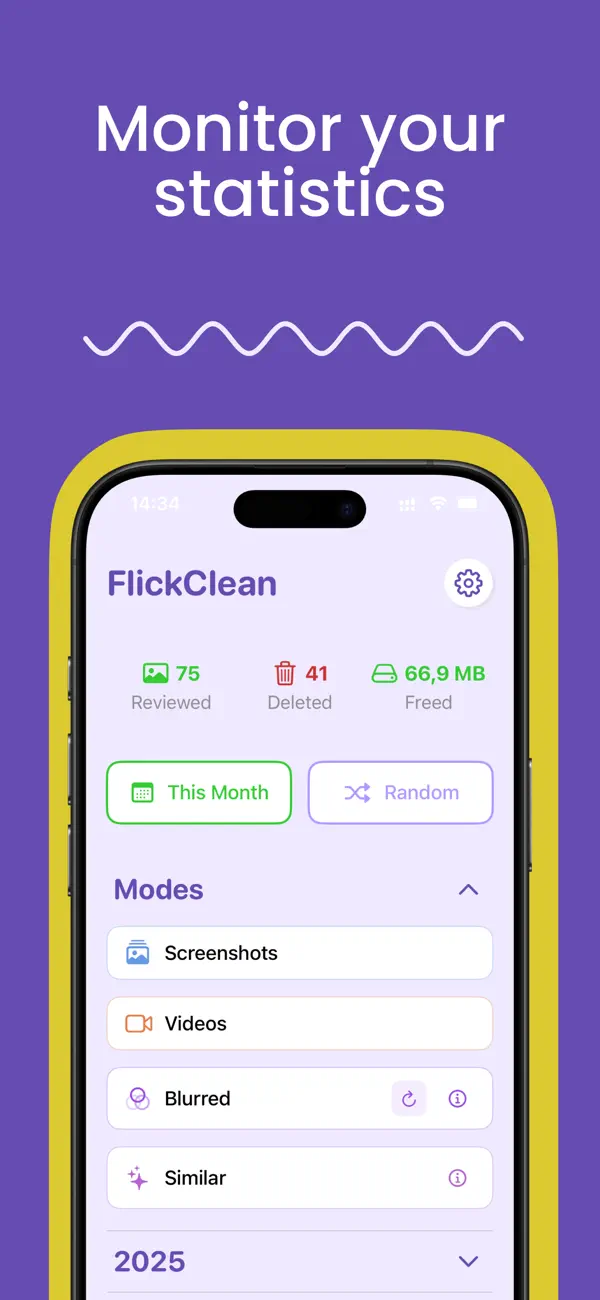
- Clear the modes first. Run Videos, Screenshots, Blurred, then Similar — in that order. This clears the bulk clutter before you touch a single "real" photo.
- Then go month by month. Pick a month and swipe through it: left to delete, right to keep. One month per session keeps it light. The progress bar shows how far you've come.
- Review every batch. The Confirm Delete screen lets you double-check each batch before it's removed. Undo is always one tap away.
- Empty Recently Deleted and watch the stats. Empty Photos → Recently Deleted to reclaim space immediately, then check FlickClean's stats screen — photos reviewed, deleted, and megabytes freed, month by month.
💡 Pro tip: Make it a monthly habit: at the end of each month, swipe through that month's photos while they're fresh. Five minutes a month means your camera roll never gets out of control again.
Frequently asked questions
How long does it take to clean up a camera roll?
With the mode-first approach, most people see gigabytes freed in their first 15-minute session. A full multi-year library usually takes a few short sessions spread over a week — not one marathon.
Should I delete photos or move them to iCloud?
Both have a place. Cloud storage is for photos worth keeping; deleting is for junk that isn't worth paying to store. Clearing the junk first often makes the storage upgrade unnecessary.
Can I clean my camera roll without losing anything important?
Yes — FlickClean never auto-deletes. Every photo you remove is one you swiped yourself, reviewed on the Confirm Delete screen, and can still recover from Recently Deleted for 30 days.