
Screenshots are the junk mail of your photo library. They serve their purpose for about five minutes — showing someone a message, saving a confirmation code, capturing a map — and then live in your camera roll forever. Most iPhone users accumulate over a thousand screenshots a year.
The Photos app has a Screenshots album (Albums → Media Types → Screenshots), but deleting from it means tapping Select and then tapping every single screenshot by hand. For 800 screenshots, that's 800 taps. There is no "select all" button on iPhone.
Why screenshots are the easiest storage win
Screenshots are the perfect first target for a cleanup session:
- Almost none are worth keeping — their value expires the moment they've been used
- They're easy to judge — you can decide keep-or-delete in under a second each
- They're grouped automatically — no hunting through your library required
Bulk-clear screenshots with FlickClean (step by step)
- Download FlickClean. Get FlickClean free on the App Store. Everything runs on your device — screenshots with sensitive info never leave your phone.
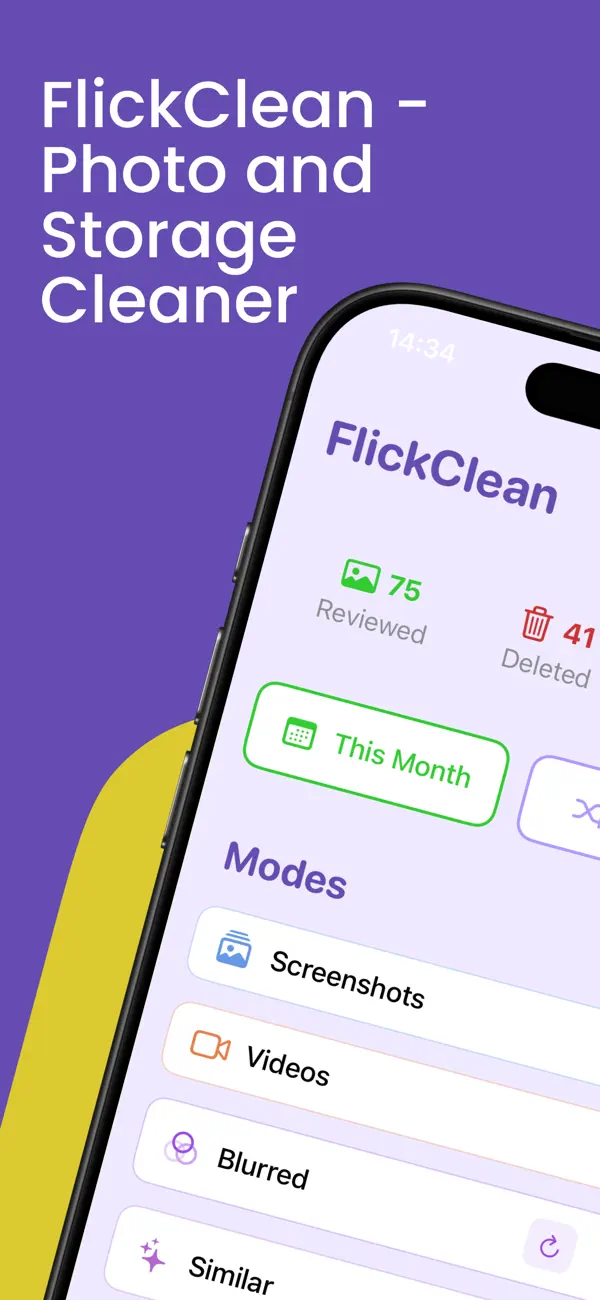
- Open Screenshots mode. Tap Screenshots on the home screen. FlickClean collects every screenshot in your library into one clean queue.
- Swipe through them. Swipe left to delete, right to keep. Because screenshots are so easy to judge, most people clear hundreds in a few minutes. Undo instantly if you swipe the wrong way.
- Review and confirm. The Confirm Delete screen shows everything you marked. Rescue anything important — that one screenshot of your Wi-Fi password — then confirm.
- Empty Recently Deleted. Open Photos → Albums → Recently Deleted → Delete All to reclaim the space immediately instead of waiting 30 days.
💡 Pro tip: Keep a "screenshots worth keeping" rule: if it's a document, ID or password, move it to Notes or Files where it belongs. Everything else in the Screenshots queue can go.
Frequently asked questions
Can I delete all screenshots on iPhone without an app?
Only manually: Photos → Albums → Media Types → Screenshots → Select, then tap each screenshot one by one. iOS has no select-all or bulk-delete option, which is why a swipe-based cleaner is dramatically faster.
Will deleting screenshots break anything?
No — screenshots are just images. Deleting them doesn't affect the apps or pages they captured. Anything important (tickets, codes) should be saved to the right app before you clear the backlog.
How much space do screenshots take up?
Individually little, collectively a lot: a thousand screenshots typically occupy 1–3 GB, and full-page Safari screenshots are much larger.