
Blurry photos are the most invisible kind of clutter. You'd delete them on sight — but you never see them, because nobody scrolls through 10,000 photos looking for the bad ones. They just sit there, taking up space, diluting your library.
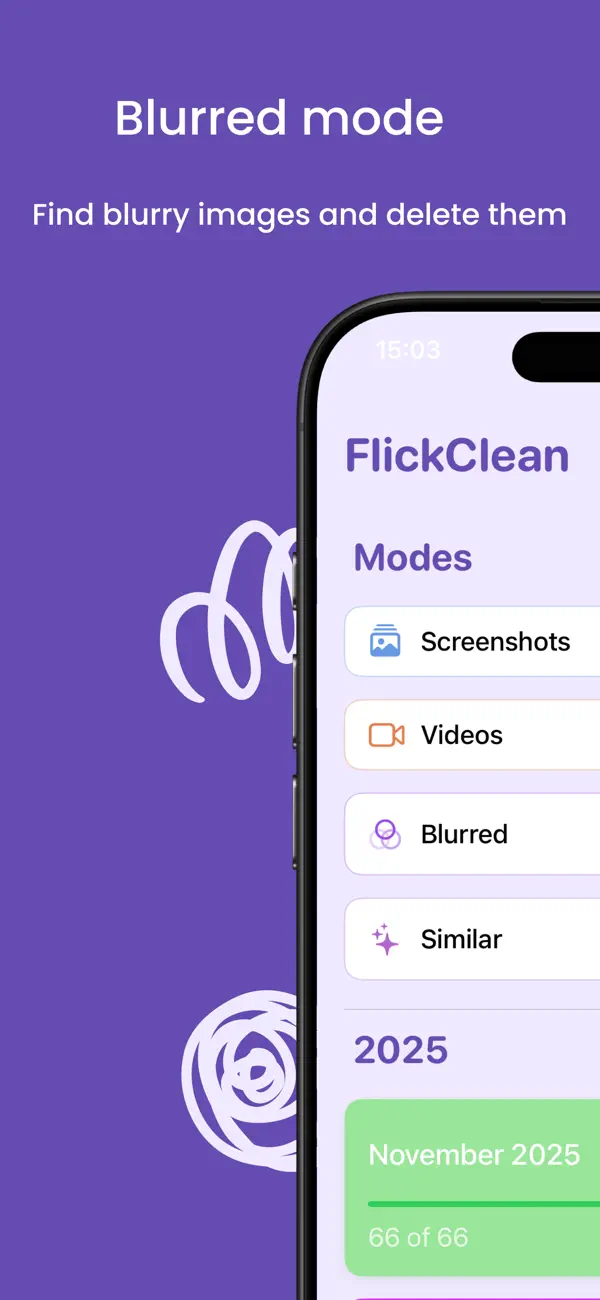
Apple's Photos app has search, albums, and a Duplicates utility — but no blur detection at all. There is simply no built-in way to ask your iPhone "show me every out-of-focus photo." That's what FlickClean's Blurred mode was built for.
Where blurry photos come from
The usual suspects, and why they accumulate unnoticed:
- Motion blur — shots taken while walking, in low light, or of moving kids and pets
- Missed focus — the camera locked onto the background instead of the subject
- Accidental shots — pocket photos, table photos, and the floor at a concert
- Failed bursts — the frames around the one good shot
Delete blurry photos with FlickClean (step by step)
- Download FlickClean. Get FlickClean free on the App Store. Blur detection runs entirely on-device — your photos are analyzed on your phone, never uploaded.
- Open Blurred mode. Tap Blurred on the home screen. FlickClean scans your library and queues up the photos it detects as blurry or failed.
- Swipe through the results. Most of what you'll see is an easy left-swipe (delete). Artistic motion blur you want to keep? Swipe right. Wrong swipe? Undo instantly.
- Review and confirm. Check the Confirm Delete screen, unmark anything you want to save, and confirm. Nothing is removed without your approval.
- Empty Recently Deleted. Photos → Albums → Recently Deleted → Delete All reclaims the space right away.
💡 Pro tip: Run Blurred mode once, then again after big events. Low-light party photos and moving-subject shots are where blur accumulates fastest.
Frequently asked questions
Can the iPhone Photos app find blurry photos?
No. iOS has no blur detection. The Photos app can find duplicates, people and places — but it cannot identify out-of-focus or failed shots. You need a dedicated tool like FlickClean's Blurred mode.
Will it flag photos that are intentionally blurry?
Detection targets photos that read as failed shots. You review everything before deletion, so intentional bokeh or motion-blur art is one right-swipe away from being kept.
Is my photo library analyzed in the cloud?
No. All blur analysis happens on your device. FlickClean never uploads your photos and doesn't require an account.