
If your iPhone storage is filling up, duplicate photos are almost always part of the problem. Every accidental double-tap of the shutter, every image saved twice from WhatsApp or Messages, and every burst of near-identical shots adds up — most libraries carry hundreds of duplicates without their owners ever noticing.
Apple's built-in Duplicates album (Photos → Albums → Utilities → Duplicates) is a good first pass, but it only merges photos that are exact or near-exact copies. The ten slightly different shots of the same sunset? iOS treats them as unique photos and leaves them alone. That's exactly the gap a dedicated duplicate photo remover fills.
Why the iOS Duplicates album isn't enough
The iOS Duplicates tool compares images pixel-by-pixel, so it only catches true copies. It misses:
- Similar photos — several takes of the same scene with tiny differences in framing or focus
- Burst photos — 10–100 frames where only one is worth keeping
- Re-saved images — the same picture at different resolutions or compression levels
Delete duplicate photos with FlickClean (step by step)
- Download FlickClean and open it. Get FlickClean free on the App Store. No account is needed — the app scans your library entirely on your device, so nothing is uploaded anywhere.
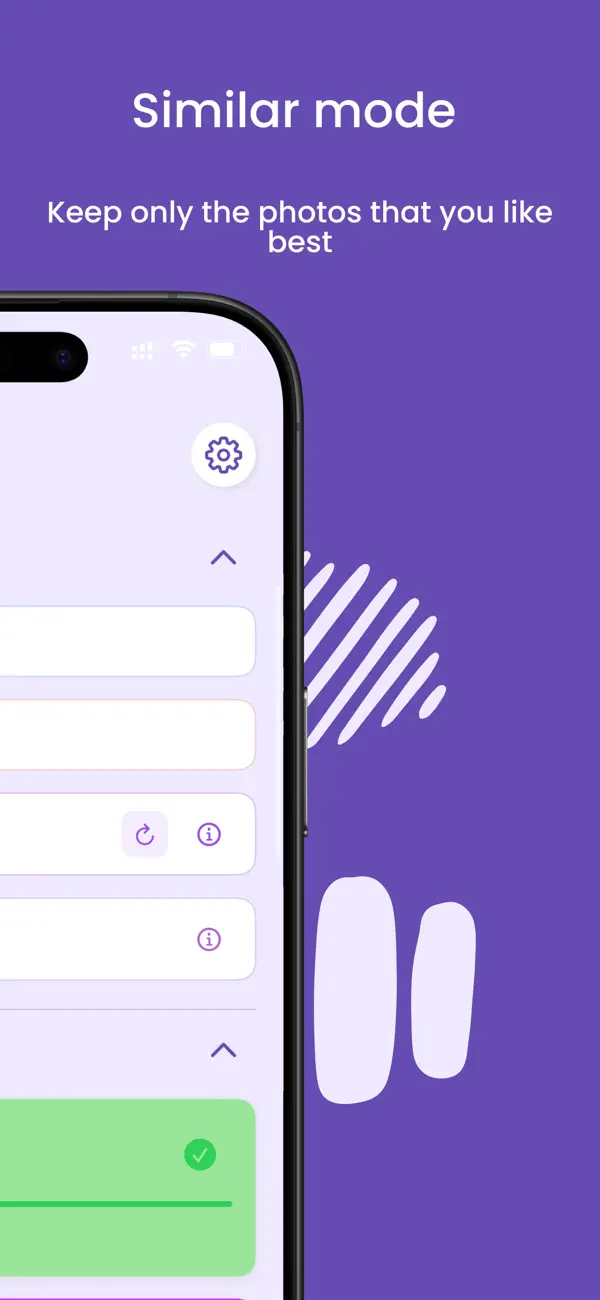
- Open Similar mode. On the home screen, tap Similar. FlickClean automatically scans your library and groups duplicates and near-duplicates together — including the similar shots the iOS Duplicates album skips.
- Keep the best, swipe the rest. Inside each group, pick the photo you want to keep and swipe left on the rest to mark them for deletion. Made a mistake? Undo any swipe instantly.
- Review and confirm. Before anything is removed, FlickClean shows a Confirm Delete screen with every marked photo. Uncheck anything you want to save, then tap Delete.
- Empty Recently Deleted. iOS keeps deleted photos in Photos → Albums → Recently Deleted for 30 days. To reclaim the space immediately, open that album and tap Delete All.
💡 Pro tip: Run Similar mode after every trip or event. Vacations and parties are when burst shots and repeated takes pile up fastest — a two-minute swipe session right after keeps duplicates from ever accumulating.
Frequently asked questions
Does deleting duplicates remove the original photo?
No. You choose which photo in each group to keep. FlickClean never deletes anything without showing you the Confirm Delete review screen first, and deleted photos stay in the iOS Recently Deleted album for 30 days.
Will this work with iCloud Photos?
Yes. FlickClean works with your iPhone photo library. When you delete a duplicate, the change syncs through iCloud Photos just like a deletion made in the Photos app.
How much space can I recover from duplicates?
It depends on the library, but users with a few years of photos typically recover between several hundred megabytes and multiple gigabytes from duplicates and similar shots alone.